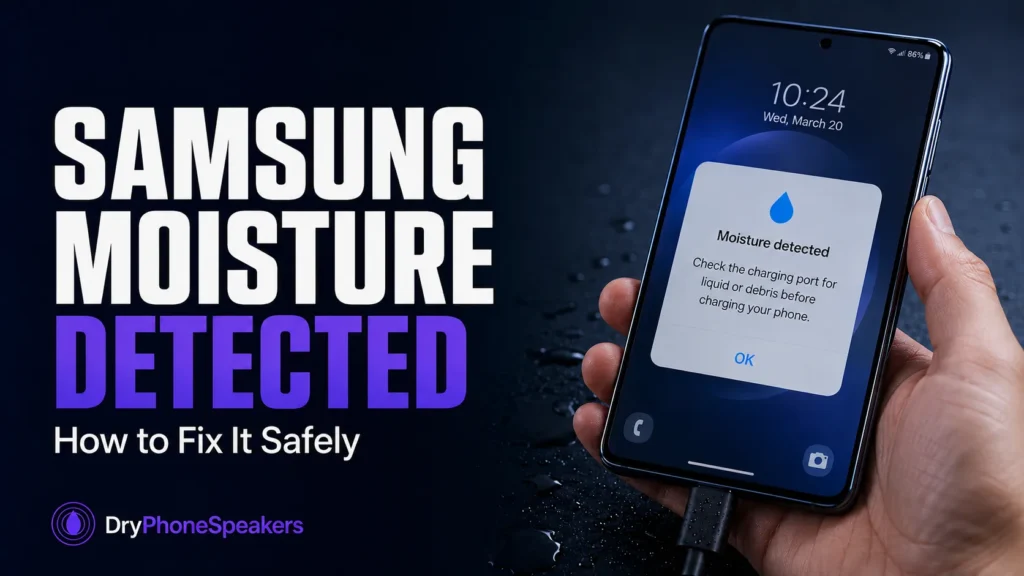
You plug in your Samsung Galaxy phone and instead of charging, a warning appears: moisture has been detected in the charging port. Sometimes it happens after rain, a pool splash, a sweaty workout, or a phone drop near water. Other times, it appears when the phone seems completely dry.
This warning can be frustrating because your phone may still work normally, but charging is blocked for safety. I have seen people immediately try a different cable, push the charger in harder, or restart the phone over and over. Those steps usually do not solve the real problem.
On Samsung phones, the moisture detected warning is designed to protect the USB-C port and charging system. The right response is to dry the phone safely, check the port carefully, and avoid anything that could push moisture deeper or damage the connector.
Quick Answer
If your Samsung phone says moisture detected, unplug the charger immediately, remove the case, dry the outside of the phone, hold the USB-C port facing downward, and wait before charging again. Do not use heat, compressed air, rice, pins, or sharp tools. If the warning stays for more than 24 to 48 hours, there may be debris, residue, a damaged port, or a software issue.
If your speaker also sounds muffled after water exposure, try the Water Eject Tool after the phone is safely dry enough to use. You can also check sound with the Speaker Test and call quality with the Microphone Test.
What the Samsung Moisture Detected Warning Means
The moisture detected warning means your Samsung phone believes there is liquid or high moisture near the USB-C charging port. To reduce the risk of electrical damage, the phone may block wired charging until the port is dry.
This warning is most common on Samsung Galaxy phones with USB-C charging. It may appear after clear water exposure, but it can also appear after sweat, humidity, pool water, saltwater, coffee, soda, or dust mixed with moisture.
The warning does not always mean the phone is ruined. Many times, the phone is simply protecting itself until the charging port is safe again.
Why Samsung Blocks Charging When Moisture Is Detected
Charging sends electrical current through small metal contacts inside the USB-C port. If liquid is sitting near those contacts, charging can create problems.
Possible risks include:
- Short circuits
- Corrosion on charging contacts
- Charging failure
- Port damage
- Battery or heat issues
This is why forcing a charger into a wet port is never worth it. A few hours of waiting is much better than damaging the charging port permanently.
First Things to Do When the Warning Appears
1. Unplug the charger
Remove the cable right away. Do not keep plugging and unplugging the charger repeatedly. That can spread moisture around the port.
2. Remove the case
Phone cases can trap water around the bottom edge of the device. I have seen Samsung phones stay damp much longer because water was sitting between the phone and the case.
3. Dry the outside
Use a soft microfiber cloth. Wipe around the USB-C port, speaker area, buttons, and edges. Do not push cloth or tissue into the charging port.
4. Point the port downward
Hold the phone so the USB-C port faces down. This helps gravity move moisture toward the outside instead of deeper into the connector.
5. Wait before charging
Let the phone sit in a dry area with normal airflow. Do not place it in rice or use heat.
What Not to Do
Some quick fixes can make the problem worse.
- Do not use a hair dryer. Heat can damage seals, adhesive, and internal parts.
- Do not use compressed air. Strong air pressure can push moisture deeper.
- Do not put the phone in rice. Rice dust can enter ports and openings.
- Do not use pins or toothpicks. You can scratch or bend charging contacts.
- Do not force the charger. If the warning appears, the phone is telling you to wait.
One common mistake is trying to clean the USB-C port with a metal object. The contacts inside the port are small and easy to damage. If debris is stuck inside, gentle cleaning or professional service is safer.
How Long Does the Warning Usually Last?
For light moisture, the warning may disappear within a few hours. For heavier exposure, it may take 24 hours or longer.
The drying time depends on:
- How much liquid entered the port
- Whether the phone was in a case
- The room temperature and airflow
- The type of liquid
- Whether debris or residue is inside the port
Fresh water usually dries more cleanly than soda, coffee, pool water, or saltwater. Sticky or salty liquids can leave residue even after the port appears dry.
Samsung Moisture Detected Won’t Go Away? Try These Checks
If the Samsung moisture detected warning stays after the phone has had plenty of time to dry, do not keep forcing the charger. First make sure the USB-C port and cable are completely dry. Then restart the phone, inspect the port with a bright light for lint or residue, and try a clean, dry cable. If your Galaxy supports wireless charging, you can use it temporarily while the USB-C warning remains. If the alert still does not clear after 24 to 48 hours, debris, residue, port damage, or a software issue may be involved.
Check these possibilities next.
Dust or lint in the USB-C port
Pocket lint can hold moisture and make the phone think the port is still wet. Use a bright light to inspect the port. Do not dig inside with sharp tools.
Residue from drinks or saltwater
Soda, coffee, ocean water, and pool water can leave residue on the contacts. This may require professional cleaning.
Damaged charging cable
Try a clean, dry, known-good cable after the phone has dried. Do not test with a wet or dirty cable.
Software glitch
Sometimes the warning remains after the port is dry. Restarting the phone may help, but only after you are confident there is no moisture in the port.
Can You Use Wireless Charging?
If your Samsung phone supports wireless charging and the outside of the phone is dry, wireless charging may work while the USB-C port warning remains. This can be useful if you need power and cannot safely use a cable yet.
However, do not place a wet phone on a wireless charger. Dry the back of the phone first. If the phone gets unusually warm, stop charging and let it cool.
What If the Speaker Also Sounds Muffled?
Water exposure can affect more than the charging port. If your Samsung speaker sounds muffled, the speaker grille may also have moisture trapped inside.
After the phone is safe to use, hold the speaker facing downward and try the Water Eject Tool. Then check the result with the Speaker Test.
If people say your voice sounds quiet or underwater during calls, use the Microphone Test as well.
When to Get Professional Help
Consider repair service if:
- The moisture warning lasts more than 48 hours.
- The phone was exposed to saltwater, soda, coffee, or pool water.
- The USB-C port looks dirty, corroded, or damaged.
- The phone charges only at certain angles.
- The phone gets hot while charging.
- The speaker, microphone, or camera also acts strange.
I have seen phones where the moisture warning was not caused by water anymore, but by residue left behind after the liquid dried. That is when professional cleaning can make a real difference.
How to Prevent the Warning in the Future
- Dry the phone quickly after rain or sweat exposure.
- Remove the case after the phone gets wet.
- Keep the USB-C port clear of lint.
- Do not charge in a steamy bathroom.
- Avoid using cheap or dirty charging cables.
- Use wireless charging when the port may still be drying.
Water resistance helps, but it does not make a phone waterproof forever. Drops, heat, age, and repairs can weaken seals over time.
Frequently Asked Questions
Why does my Samsung say moisture detected when it is dry?
The port may still have hidden moisture, lint, residue, or a dirty cable. Sometimes the warning can also remain because of a software glitch, but you should rule out moisture first.
Can I override the moisture detected warning?
You should not force charging while the warning is active. The warning exists to protect the phone. Wait until the port is dry or use wireless charging if your model supports it.
How long does Samsung moisture detected take to clear?
Light moisture may clear in a few hours. Heavier exposure can take 24 hours or longer. If it stays longer than 48 hours, inspect for lint, residue, or damage.
Does rice fix the moisture detected warning?
No. Rice is not reliable and can leave dust near the port. A dry place with airflow is safer. For more detail, read Phone in Rice? The Truth About Water Damage.
Can I charge wirelessly while the USB-C port warning is active?
Usually yes, if your phone supports wireless charging and the outside is dry. Stop if the phone becomes unusually warm.
Final Thoughts
The Samsung moisture detected warning can be annoying, but it is there for a good reason. It helps protect the charging port from damage when liquid may be present.
Do not rush the process. Remove the charger, dry the phone, keep the USB-C port facing down, and give it time. Avoid heat, rice, compressed air, and sharp tools.
If the warning clears and everything works normally, the phone likely protected itself successfully. If the warning stays, charging becomes unreliable, or the speaker and microphone also act strange, professional inspection is the safer next step.