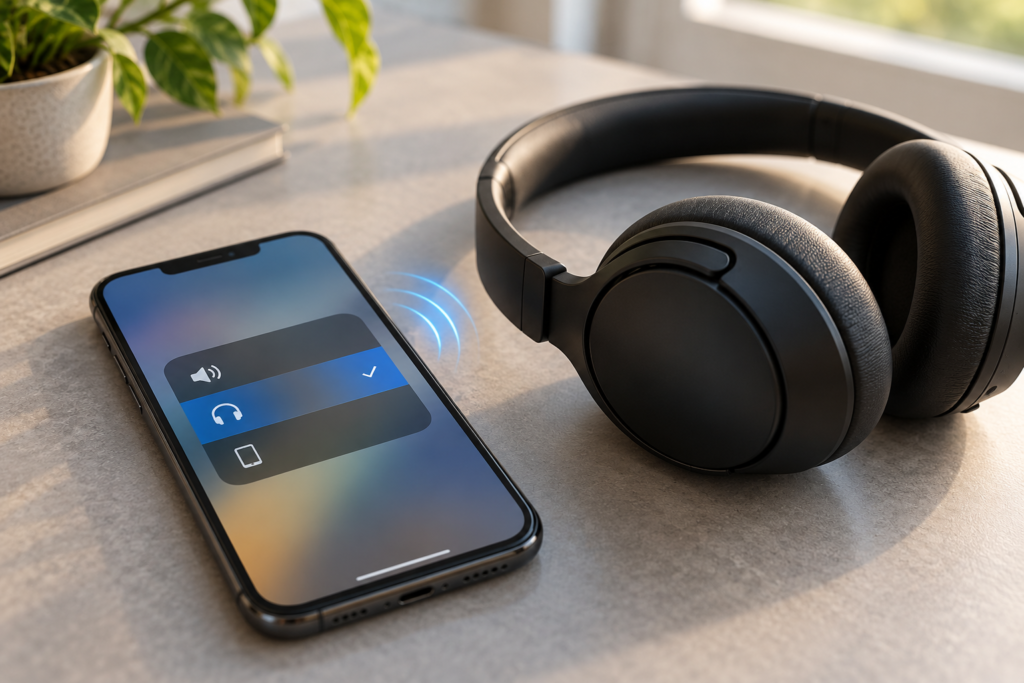
Your phone says your earbuds or Bluetooth speaker are connected. You press play, and the sound still comes out of the phone. Before resetting anything, check where the phone is sending the audio. A Bluetooth connection and an active playback destination are not always the same thing.
This guide separates three problems that can look identical: the wrong output is selected, the accessory is connected without media audio, or a particular app or call is using a different route. Start with a short, quiet test rather than turning the volume up.
First, find out what is actually playing the sound
- Pause the music or video. Set your phone and headphones to a comfortable, low volume.
- Check that the headphones are powered on, charged, and actually listed as Connected rather than merely saved or paired.
- Play a familiar track for a few seconds. Open the phone’s media output selector and look for the device currently selected.
- Choose the headphones or Bluetooth speaker explicitly. Pause and resume playback.
- Try a second app, such as your phone’s music player or a video app, to see whether the behavior is app-specific.
What the result means: If selecting the accessory fixes it, the issue was audio routing, not necessarily a damaged speaker or bad headphones. If the accessory is absent from the output list, check the Bluetooth connection itself. If one app works and another does not, investigate that app’s output or casting controls before changing phone-wide settings.
On iPhone: select the headphones as the playback destination
Open a music or podcast app and start playback. Open Control Center (swipe down from the top-right on Face ID iPhones; older models may use an upward swipe). In the media controls, tap the playback destination/AirPlay symbol and select your Bluetooth headphones. You can also change the destination from compatible apps or the Lock Screen while audio is playing.
Then open Settings > Bluetooth. Confirm the accessory appears as connected. A name in the device list by itself does not prove that current audio is being sent there. If you see a different destination—such as the iPhone, a speaker, or another connected device—switch it back to the headphones.
Apple documents this playback-destination method in its iPhone Bluetooth audio guide. Menu labels and icon appearance can vary by iOS version.
When calls use the phone speaker but music uses the headphones
Calls have their own audio controls. During a phone call, look for the Audio or speaker destination button and select your headset if offered. If calls repeatedly default to the wrong place, check Settings > Accessibility > Touch > Call Audio Routing. This controls the preferred route for phone and FaceTime calls; it is not a universal music-output switch. Apple’s call-routing instructions explain the setting.
AirPods and some other multi-device earbuds can also switch between devices. If the headphones unexpectedly move to a laptop or tablet, pause audio there and manually select them again on the phone. Do not assume every earbud model supports automatic switching.
On Samsung Galaxy: use Media output
With a track playing, open Quick Settings by swiping down from the top of the screen; on some Galaxy versions you may need to swipe down again. Tap Media output and select your connected headphones or speaker. Samsung’s Media output guide shows how to change the playback destination without unpairing anything.
If both the phone and another device appear selected, inspect the available choices. Some supported Galaxy devices can play to two Bluetooth audio accessories through Dual audio; that feature and the exact panel layout vary by model and software. You generally want the intended headphones selected, not an unintended second destination.
If the headset is missing, go to Settings > Connections > Bluetooth, confirm it is connected, and reopen Media output. If the device appears connected but refuses media playback, inspect its Bluetooth device details for an audio/media setting where available.
On Google Pixel and other Android phones: check the media output switcher
On Pixel, start playing something and swipe down to the media controls. Tap the output device name at the upper-right of the media panel—often shown as the phone speaker or an accessory—and choose your headphones. Google’s Pixel media instructions describe this control. On other Android phones, the output switcher may appear in the notification shade, the volume panel, or inside the playback app.
Next, open Settings > Connected devices, find your accessory, and open its settings (often a gear icon). If there is a Media audio toggle, turn it on. This matters because some Bluetooth devices can connect for calls or another function without being enabled for music. Google’s Android Bluetooth troubleshooting guide specifically recommends checking Media audio when music is silent.
Do not confuse Phone audio with Media audio. The former concerns compatible calling functions; the latter is for music and videos. The available switches depend on the accessory, Android version, and manufacturer.
If the output is selected correctly but you still hear nothing
1. Check volume on both ends
While music is playing, adjust media volume on the phone, not just ringtone volume. Some headphones and speakers have their own volume controls. Start low and increase only enough to hear comfortably. If you hear sound faintly in the headphones, routing may already be correct and the problem may be volume, a muted accessory, or its hardware.
2. Rule out a second connected device
Turn off Bluetooth temporarily on a nearby tablet, laptop, or other phone that also uses the headphones, or disconnect the headphones from that device. Some accessories support multipoint connections; others automatically reconnect to the last-used device. If audio starts working after disconnecting the other device, investigate that accessory’s switching behavior rather than resetting the phone.
3. Try a different audio source
Test a short song or locally stored recording, then a video in another app. If one app stays silent, check whether it is casting to a television, using its own output picker, paused, or muted. A successful second-app test is evidence against a complete Bluetooth audio failure, although it does not identify every possible app bug.
4. Reconnect before forgetting the device
Disconnect and reconnect the accessory. Power it off and back on if necessary, and restart the phone if the connection remains inconsistent. Only then consider Forget This Device or Unpair, followed by pairing again using the accessory’s manual. This removes the saved pairing and may require you to repeat setup; it is not the first step. Apple’s Bluetooth connection checklist follows a similar escalation.
What if sound comes from the phone only during calls?
Test media and calls separately. A headset can be working for music while the call route points to the handset or speakerphone. During a call, use that call screen’s audio selector. On Android, check whether the accessory supports and has enabled Phone audio; on iPhone, review the in-call destination and Call Audio Routing setting. Some car stereos and Bluetooth speakers do not support hands-free calling, even if they can play music.
If callers cannot hear you, that is a microphone or call-input question, not proof that the phone’s loudspeaker is defective. Compare a voice memo or other built-in recorder with a call, and use our browser microphone test only as a limited check of which input the browser receives. A moving meter does not verify what a separate calling app uses.
Use a speaker test without confusing the result
Our speaker sound test can help you compare whether a sound plays clearly at a comfortable level. But it follows your device’s currently selected audio route. If Bluetooth headphones are active, the test may play through those headphones—not through the phone’s built-in speaker. To check the phone speaker, first disconnect Bluetooth audio and confirm the phone is the selected destination.
That distinction matters. A browser tone cannot diagnose a Bluetooth radio, prove an internal speaker is damaged, or tell you which device a phone call will use. It can help you isolate an audible symptom after you’ve confirmed the route.
Quick interpretation: what your result points to
- Headphones work immediately after choosing them in the output menu: wrong playback destination was the likely cause.
- Headphones connect for calls but not music: check Media audio support and settings, especially on Android.
- Music works but calls use the phone: check the in-call audio destination and calling profile.
- Only one app has the problem: check that app’s playback, casting, and mute settings.
- The headphones fail with multiple phones: suspect the accessory, its battery, firmware, or compatibility before blaming the first phone.
- Several known-good headsets fail on one phone: check system updates and the manufacturer’s support guidance; a phone-side software or hardware issue becomes more plausible.
When to stop troubleshooting and get help
If Bluetooth cannot be turned on, the setting is unavailable, the phone repeatedly drops every known-good accessory, or the device became hot, wet, or physically damaged, stop repeated testing and seek manufacturer or qualified repair guidance. Do not insert tools into speaker openings or try high-volume tones to force an audio connection.
For most connected-but-wrong-output cases, the useful fix is simpler: confirm the accessory is connected, choose it as the active media destination, and test music separately from calls. That tells you what to investigate next without guessing at a broken speaker.