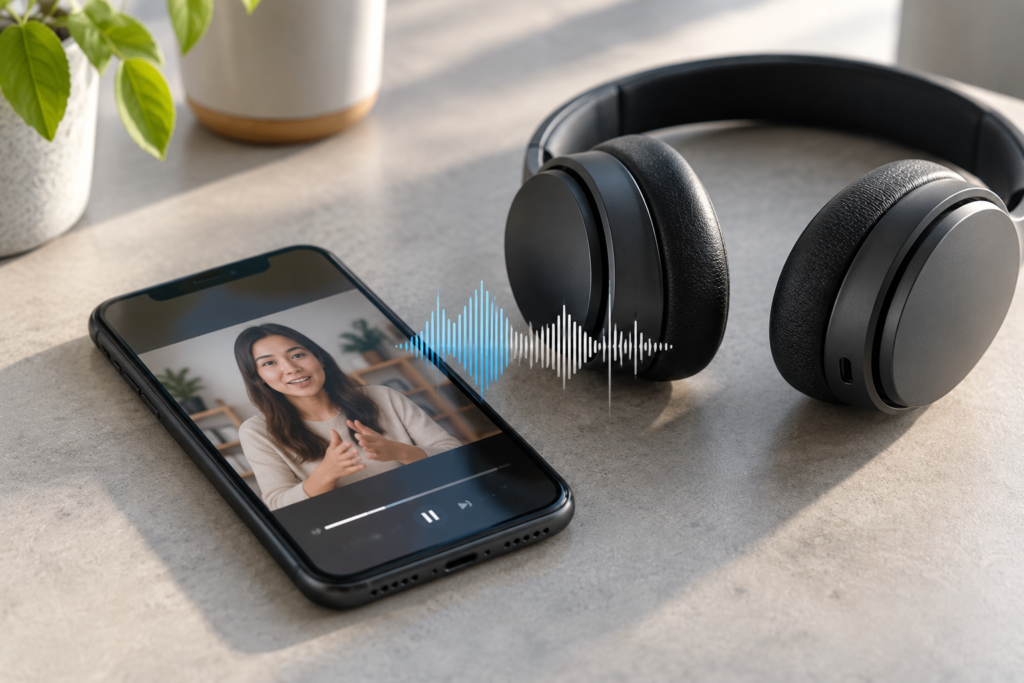
You’re watching a video on your phone. Someone starts speaking, but the words reach your wireless earbuds a moment after their lips move. Or you tap a button in a game and hear the sound effect noticeably later. Both are audio-delay problems, but they do not always have the same cause.
Bluetooth headphones take time to receive and play sound. Video apps can often compensate by adjusting playback timing, while interactive games cannot always predict when a sound will be needed. A delay that is obvious in a game may therefore be barely noticeable in a movie. The useful question is not simply “How do I reset Bluetooth?” It is where does the delay begin?
This guide uses comparisons you can perform without special equipment. Keep the volume comfortable, and change one thing at a time so you know which step helped.
A quick test you can do now
- Play a short talking-head video through your phone speaker and note whether the speech matches the lips.
- Replay the same moment through your Bluetooth headphones without changing the app or playback speed.
- If only Bluetooth is late, replay the clip in a second app; if both outputs are late, investigate the video or app first.
- Try a game with a tap-triggered sound. If only the game is noticeably delayed, look for a supported low-latency mode or compare wired audio.
Write down which comparison changed the result. That is more useful than resetting every connection setting at once.
First, identify which kind of delay you have
Start with a short video where someone is speaking clearly. Watch the same scene twice, first through your phone’s own speaker and then through your Bluetooth headphones. You can also use a short, familiar video with visible claps or taps. Don’t rely on a random online “latency test” number; a browser, screen recording or video file can add its own timing errors.
- Out of sync on the phone speaker too: investigate the video, streaming app or playback process first. Bluetooth is not the only suspect.
- In sync on the phone speaker but late through headphones: focus on the wireless audio path, headset settings and device combination.
- Video looks fine but game effects are late: this can be a normal limitation of wireless audio latency, even when the connection is stable.
- Sound pauses, stutters or disappears rather than arriving consistently late: troubleshoot connection stability and interference instead of lip-sync timing.
If your headphones actually skip or disconnect, our separate Bluetooth cutting-out troubleshooting guide is the better starting point. A stable but delayed signal is a different symptom.
Use a four-comparison test before changing settings
1. Compare the same clip with and without Bluetooth
Disconnect the headphones and replay the exact same portion through the phone speaker. Then reconnect and replay it through the headphones. Try to keep the same app, clip and playback speed. If the mismatch appears only with the headphones, you have narrowed the issue to the wireless route or how the app handles that route. It does not prove the headphones are defective.
2. Try another video app or a locally saved clip
Play a different video in another app. If possible, also try a video already saved on the phone. This helps distinguish a single app’s playback behavior from a delay that occurs across the phone. If only a streamed clip misbehaves, check whether the picture itself is freezing or buffering; that can make the apparent sync problem change over time.
For playback trouble in YouTube, Google recommends updating the app, closing and reopening it, restarting the device and testing a different network when buffering is involved. See YouTube’s official Android playback guidance. A faster network may help buffering; it does not necessarily remove the underlying Bluetooth audio delay.
3. Compare a video with a game
Try a video with visible speech and then a game with a clear tap-triggered sound. Many video players can account for audio buffering by delaying the picture. A game responds to actions as they happen, so the same headphones may sound slower there. If the problem is confined to gaming, prioritize a supported low-latency or gaming mode rather than repeatedly reinstalling a video app.
4. Compare a second headset or a wired connection
If you can borrow another pair of headphones, test it with the same phone and app. If one pair is consistently more delayed, the headphones or their interaction with the phone may be responsible. A compatible wired headset is also a useful comparison because it avoids the Bluetooth audio path. For USB-C phones, remember that not every 3.5 mm adapter works with every model; see our USB-C headphone adapter guide before assuming a silent wired test means the phone is broken.
Fixes to try when Bluetooth is the difference
Move closer and reduce wireless interference
Place the phone near the headphones, preferably on the same desk or in an unobstructed pocket, and replay the clip. Try a different room away from crowded wireless equipment. Samsung notes that nearby Bluetooth devices, wireless routers, metal obstacles and microwave ovens can interfere with wireless audio; its official earbuds lag guide recommends improving the connection first.
Interference more commonly causes glitches or inconsistent playback than an identical fixed delay every time. If moving closer stops interruptions but the sound remains a little behind the picture, you’ve improved stability without necessarily changing latency.
Restart the affected playback session
Pause and resume the video. If it remains out of sync, fully close the app and open it again. Next, disconnect and reconnect the headset. If a single app continues to behave differently, check for its updates and try the same content in another app. These reversible steps are preferable to immediately erasing all Bluetooth pairings or resetting network settings.
Update the phone and headphone software
Check for a phone software update and, if your headphone maker provides a companion app, check for a supported firmware update there. Follow the manufacturer’s instructions and keep the devices charged during an update. Updates can address compatibility or playback bugs, but there is no guarantee that every update reduces audio latency.
Samsung Galaxy and Galaxy Buds: check whether Gaming mode is supported
On certain Galaxy Buds paired with compatible Samsung phones, Gaming mode can reduce audio delay. Samsung documents a path through the Galaxy Wearable app, typically Earbud settings > Labs > Gaming mode. The exact labels and availability depend on the earbuds, phone and software version. If the option is missing, do not assume it has been hidden by an error; your combination may not support it.
Samsung’s Galaxy earbuds sound-settings guide explains the compatibility limits, including that Gaming mode is not available for every older Buds model or for iOS pairing. Test the same game before and after changing the option. A reduction in lag is useful; expecting perfectly instantaneous sound is not realistic.
Do not confuse Gaming mode with an equalizer or noise-cancellation setting. Changing bass, treble or ambient sound is not a reliable fix for video lip sync.
iPhone and AirPods: isolate the app before unpairing
On iPhone, begin with the phone-speaker comparison, another video app and a software check. There is no universal iPhone Bluetooth lip-sync slider that fixes every headset and app. Some video apps handle synchronization better than interactive audio, and a third-party headset may behave differently from AirPods.
Make sure the headphones are connected to the intended device. If you’re troubleshooting an accessory that fails to reconnect correctly, Apple’s Bluetooth accessory instructions explain how to forget and pair it again. That is a later step for connection problems, not a guaranteed remedy for ordinary wireless latency. Forgetting AirPods can also affect their pairing with other Apple devices using the same Apple Account, so use that step deliberately.
If the same saved video plays in sync on the phone speaker but not through two different headsets, note the iPhone model, iOS version, apps and headset models before contacting support. Those details are more useful than saying only “Bluetooth is slow.”
Google Pixel and other Android phones: check the connection, not random codec switches
On Pixel, open Settings > Connected devices to confirm the correct headset is connected. Google documents Bluetooth accessory controls for disconnecting, forgetting and reconnecting devices. Some Pixel 6 and newer phones also have Bluetooth diagnostics under Connected devices, as described in Google’s Pixel Bluetooth troubleshooting. Those diagnostics can help with connection faults, but they are not a direct measurement of audio-to-video latency.
On other Android phones, menu names vary. Avoid blindly changing Bluetooth codecs in Developer options based on a generic online tip. A codec may not be supported by both the phone and headset, and the operating system can negotiate a different one. If your headphones offer a documented low-latency setting in their own app, use that supported option and compare the result in the same game or video.
What your results mean
- One app only: check that app’s updates, playback settings and known issues; the headset may be working normally elsewhere.
- Games only: look for a compatible gaming or low-latency mode, or use wired audio for timing-sensitive play.
- Every Bluetooth headset on one phone: check phone software and compare apps; collect the results for device support.
- One headset on multiple phones: check that headset’s firmware, compatibility and manufacturer support.
- Phone speaker and headphones both out of sync: focus on the video source or app, not Bluetooth pairing.
A browser-based speaker sound test can help confirm whether sound plays clearly through a chosen output, but it cannot measure Bluetooth lip-sync delay precisely. It is not a substitute for the same-video comparison above.
When to stop troubleshooting
Consider manufacturer support if a previously well-synchronized setup develops severe, repeatable delay across several apps after updates and restarts, or if the headset also has charging, pairing or distortion problems. Report the phone model, headphone model, software versions, affected apps and the results of the speaker-versus-Bluetooth test. If low latency is essential for live instrument monitoring or competitive gaming, a compatible wired connection or purpose-built low-latency setup may be a more reliable choice than expecting a universal software fix.
Common questions
Why is YouTube in sync but my mobile game is not?
Video playback can often adjust picture timing to match delayed wireless sound. A game must react to new actions, so its audio delay may be more noticeable. Test a supported gaming mode or wired headphones.
Will resetting Bluetooth remove the delay?
Re-pairing can resolve a faulty connection, but it cannot eliminate the normal processing and buffering time of a wireless headset. Try the comparisons first so you know whether a reset is relevant.
Does a Bluetooth 5.x label guarantee no lip-sync lag?
No. The Bluetooth version alone does not specify the end-to-end delay you will experience. The phone, headset, codec support, application and whether the app compensates for delay all matter.
Bottom line: determine whether the delay follows the app, the headphones or the type of content. That one distinction prevents a lot of unnecessary resets—and tells you when a different audio connection is the practical answer.