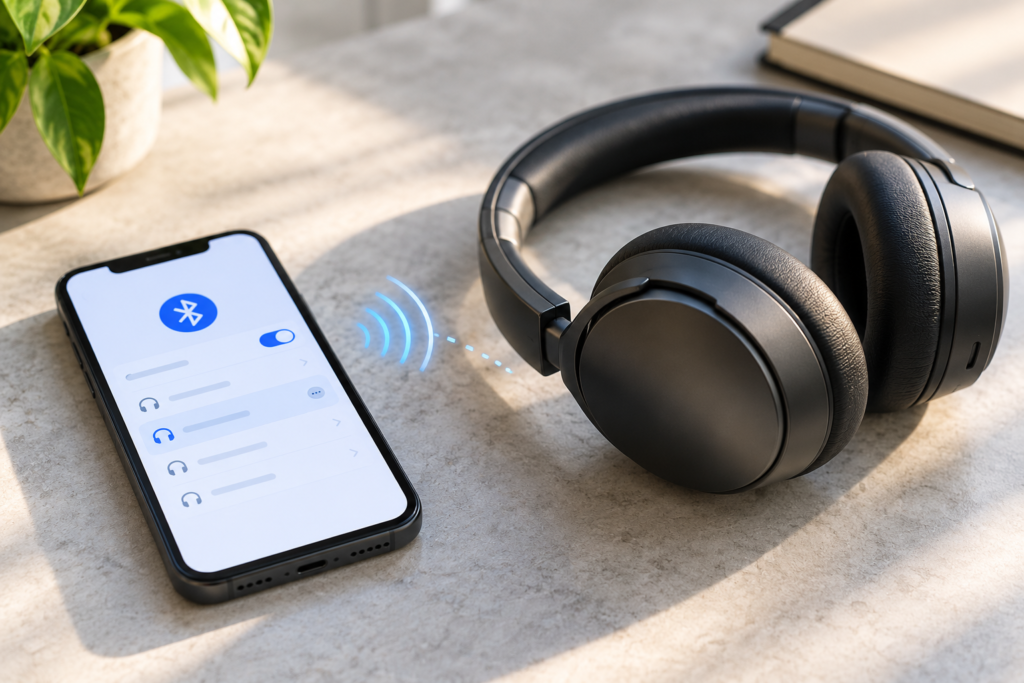
When Bluetooth headphones cut out every few minutes, the first instinct is often to reset everything. That can erase a perfectly good pairing without fixing the actual cause. A brief audio skip, a complete Bluetooth disconnection, and sound unexpectedly moving to your phone are three different symptoms. Separating them is the quickest way to find a useful fix.
This guide works with wireless over-ear headphones and earbuds on iPhone, Samsung Galaxy, and Google Pixel phones. Start at a comfortable listening volume. You do not need a loud test tone, a third-party “Bluetooth booster,” or a factory reset to narrow down most everyday connection problems.
First, identify what actually cuts out
Play a familiar recording for a minute while watching your phone’s Bluetooth device status. Note which of these descriptions matches what happens:
- Music briefly stutters, but the headphones remain connected: the wireless signal, audio source, or app may be struggling. Try the local-audio comparison below.
- The headphones disappear or show “Disconnected”: focus on battery, range, another device taking over, or a pairing problem.
- The song continues from the phone speaker: check where the phone is sending audio. Our separate Bluetooth audio-output guide covers this specific symptom.
- Only one earbud goes silent: check that bud’s charge, seating, and stereo balance rather than assuming the whole Bluetooth connection failed. See the one-earbud troubleshooting guide.
If the headphones stay connected and only one streaming app stops playing, test a different app before changing Bluetooth settings. An app that pauses or buffers is not necessarily evidence of a broken radio connection.
A five-minute comparison that tells you where to look
- Charge first. Put earbuds in their case or charge the headphones, and make sure the phone also has adequate power. A case with battery power does not guarantee both earbuds made proper charging contact.
- Move the phone close. Keep it within a few feet of the headphones, in the same room and without a wall or metal cabinet between them.
- Try audio stored on the phone. Play a legitimately downloaded song, podcast, or recording rather than a live stream. Keep the volume modest.
- Compare the same audio in a different location. Move away from a crowded desk with several wireless devices, or try a quieter room.
- Watch the Bluetooth status when it happens. A connected status during a short pause points in a different direction from a device that fully disconnects.
Apple recommends comparing locally stored audio with streaming audio when wireless headphone sound cuts out. If downloaded audio plays cleanly but a stream repeatedly stops, investigate the app or network as well as Bluetooth; that result alone does not prove the Wi-Fi connection is the cause. If both stutter in one location and improve elsewhere, wireless interference becomes more plausible. See Apple’s wireless-headphone troubleshooting advice.
Check for interference before changing settings
Bluetooth and many Wi-Fi networks share the 2.4 GHz radio band. Nearby wireless equipment, thick barriers, and some electrical devices can affect the connection. A phone in a back pocket may also have a weaker signal path to headphones than a phone sitting nearby on a desk. The practical test is to change one condition at a time.
- Keep the phone and headphones close together while testing, then slowly return to your normal distance.
- Move away from microwave ovens, dense clusters of wireless devices, and metal obstructions.
- If problems occur only beside a particular router or desk setup, test in another room. Do not change your router settings just because one track skipped.
- Where your home Wi-Fi equipment supports it, using 5 GHz for compatible Wi-Fi devices may reduce congestion on 2.4 GHz, but it is not a guaranteed Bluetooth fix.
These are practical isolation steps, not a signal-strength measurement. Apple’s wireless-interference guidance lists audio skipping, buzzing, and disconnections among possible symptoms of interference.
Make sure another device is not taking over
Some headphones remember several devices or support multipoint connections. AirPods and other ecosystems may also switch audio between devices under certain conditions. If the sound drops when you open a laptop, answer a call on a tablet, or start your car, another paired device may be requesting the headphones.
Temporarily turn off Bluetooth on your nearby laptop or tablet, or disconnect the headphones from that device. Then repeat the same audio test on your phone. If the problem disappears, review the accessory’s multipoint or automatic-switching settings in its manufacturer app or device documentation. The available controls differ by brand and model; do not assume every Bluetooth headset supports multipoint.
If the headphones are connected but music suddenly plays through the handset, verify the selected audio output in the player or system audio menu. That is a routing issue, not necessarily a dropped connection.
What to check on an iPhone
- Open Settings > Bluetooth and confirm that your headphones show as connected while the problem occurs.
- Check that the headphones are charged and close to the phone. Turn the headphones off and on using their normal controls.
- Try a downloaded audio file and a second app. If you use AirPods or Beats, also check that the phone and accessory have current supported software or firmware.
- If repeated failures continue, tap the information button beside the headphones in Bluetooth settings and choose Forget This Device. Then follow the headphones’ instructions to put them in pairing mode and connect again.
Forgetting AirPods can also remove their pairing from other devices signed into the same Apple Account, so leave that step until after the simpler tests. If Bluetooth is grayed out or no Bluetooth accessories connect at all, that points beyond one pair of headphones; Apple recommends contacting support after basic checks.
What to check on a Samsung Galaxy phone
Open Settings > Connections > Bluetooth on Galaxy models using that menu layout. Check the connected-device status and whether the headset is simultaneously connected to a nearby computer or tablet. Samsung advises charging both devices, checking range, and disconnecting the accessory from another device before pairing it again.
If you use Galaxy Buds, open Galaxy Wearable when supported and check for relevant earbud updates and settings. For another brand, use its official companion app only if your model requires one. To test whether the problem follows the headphones, connect a different Bluetooth accessory to the Galaxy phone. Do not jump to clearing system data or resetting the entire phone: those steps can disrupt other saved connections and are unnecessary for a first diagnosis. Samsung’s Galaxy Bluetooth connection guide covers the broader checks.
What to check on a Google Pixel phone
On Pixel, open Settings > Connected devices, then look for your saved Bluetooth accessory. Depending on Android version, Bluetooth options may also appear under Connection preferences > Bluetooth. Google notes that menus vary by device and software version.
If the accessory is listed but disconnected, tap it to reconnect. For a stubborn pairing, open the accessory’s settings and select Forget, then put the headphones in pairing mode and choose Pair new device. Restart the phone and accessory before repeating more disruptive steps. Google’s Pixel Bluetooth instructions explain these controls.
Remember that Fast Pair is a convenience feature on compatible accessories, not a requirement for ordinary Bluetooth audio. A headset that does not show a Fast Pair popup may still pair normally through Bluetooth settings.
When re-pairing is worth trying
Re-pair only after checking power, range, and nearby devices. First disconnect the headphones from other equipment. Then use the phone’s Bluetooth settings to forget the accessory, restart the headphones, and enter pairing mode according to the manufacturer’s instructions. Reconnect and repeat the same local-audio test.
If re-pairing helps for a day and the dropouts return only when your laptop is nearby, investigate device switching rather than repeatedly forgetting the headphones. If the connection fails again immediately in a quiet room with a full battery, move on to a cross-device test.
Use a cross-device test to separate phone and headphone faults
Try the suspect headphones with a second compatible phone or computer. Then try a different known-working Bluetooth headset with your original phone. Use similar audio and a short distance in each case, and avoid running the tests beside the same possible interference source.
- One headset cuts out on multiple devices: suspect the headset, its battery, firmware, or charging contacts.
- Several headsets fail on one phone: investigate that phone’s software, Bluetooth settings, or hardware.
- Only one app or streaming source fails: check that app and its connection before replacing equipment.
- Failures occur only in one location: test for environmental interference rather than assuming a defective product.
These comparisons narrow the possibilities; they do not diagnose an internal radio component with certainty. If you also want to check whether the phone itself produces clear sound, disconnect Bluetooth and use our browser-based speaker test at a comfortable volume. That tool checks audible output; it cannot measure Bluetooth signal quality.
When to stop troubleshooting and seek support
Contact the headphone manufacturer if the same headset repeatedly disconnects from multiple compatible devices after charging, updating, and re-pairing. If your phone cannot maintain a connection with any known-working accessory, contact the phone maker. Persistent physical damage, swelling, unusual heat, or charging problems warrant stopping use and getting qualified advice; do not open or heat a lithium-battery device.
Skip “fixes” that demand maximum-volume sound, random developer settings, or a full phone factory reset without a backup. A factory reset erases personal data and is not a sensible starting point for a headphone dropout.
Common questions
Why do my headphones cut out when my phone is in my pocket?
Body position, distance, and nearby obstructions can change the radio path. Compare the same audio with the phone on a nearby table. If it improves consistently, try a different pocket or carry position before replacing the headset.
Why does Bluetooth audio cut out during calls but not music?
Calls use the headset microphone and may involve a different Bluetooth audio mode from music. Test another calling app and a normal phone call, then check whether the headphones remain connected. If the call switches back to the handset, investigate audio routing; if every call disconnects the accessory, use the cross-device test above.
Will a Bluetooth reset app fix dropouts?
There is no universal app that repairs radio interference or a failing headphone battery. Use the phone’s built-in pairing controls and the accessory manufacturer’s official app, when applicable. Those steps provide clearer evidence about what is wrong.
The most useful result is not simply “it worked once.” It is knowing which change made the dropouts stop: moving closer, playing downloaded audio, disconnecting another device, or using a different headset. That tells you what to fix without wiping unrelated settings.