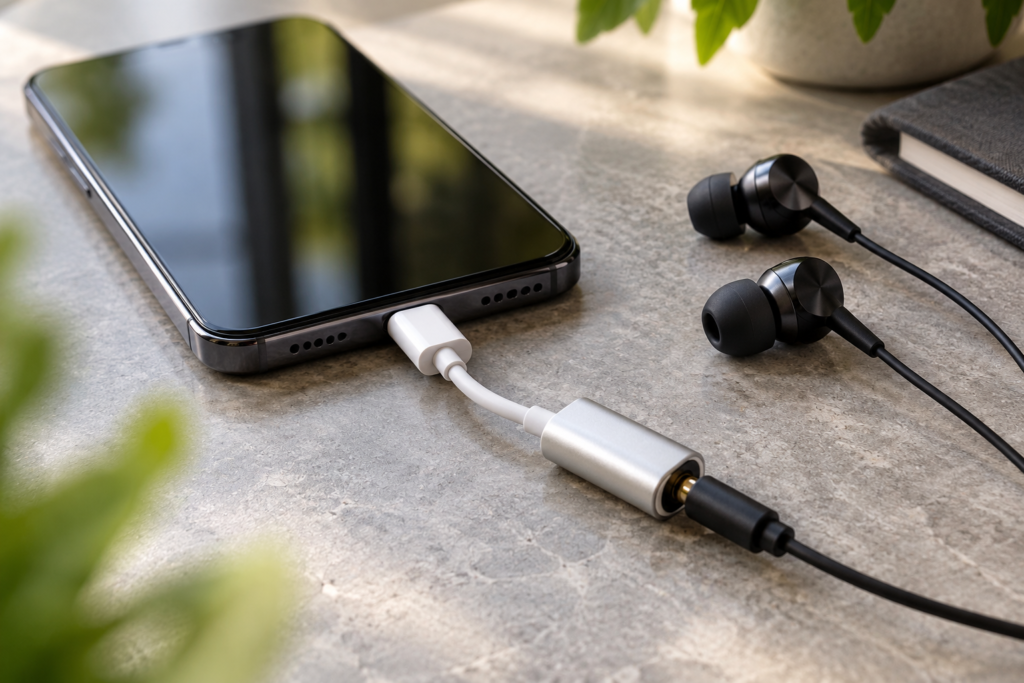
You plug wired headphones into your phone’s USB-C port, press play, and hear nothing. Maybe music keeps coming from the phone speaker. Maybe a message says the accessory is not supported. Or the earbuds play sound but their microphone does not work.
Those symptoms do not automatically mean your phone’s charging port is broken. A USB-C connector can carry different kinds of signals, and a small headphone adapter may look correct while using the wrong audio method. The useful first question is not “Which setting fixes it?” but which part of the audio path is failing?
This guide walks through checks you can do without buying anything or putting the port at risk. The steps apply broadly to USB-C iPhones, Samsung Galaxy phones and Google Pixel models, although exact menus and supported accessories vary.
First, identify which connection you are using
There are two common setups. In the first, you have earbuds or headphones with a USB-C plug on their own cable. In the second, you have traditional 3.5 mm headphones plugged into a USB-C-to-3.5 mm adapter, often called a dongle.
That difference matters. A 3.5 mm headphone plug carries analog sound. Many modern phones send digital audio through USB-C, so an adapter needs a built-in digital-to-analog converter (DAC) to turn that digital signal into sound your wired headphones can play. A cheap passive adapter that expects the phone to provide analog audio through USB-C may not work.
Samsung explicitly notes that some Galaxy models require a USB-C headphone adapter with a built-in DAC, and that analog-type USB audio accessories can produce a compatibility warning. Samsung’s adapter guidance explains this distinction. It does not mean every USB-C accessory works with every phone: supported digital formats and headset features can still differ.
Try this five-minute test before changing settings
- Lower the media volume. Start at a comfortable level; there is no need to turn it up to maximum to test recognition.
- Pause audio and disconnect the headphones. If your phone case presses against the connector, remove the case temporarily.
- Connect the USB-C plug firmly, without forcing it. If you use an adapter, check that the 3.5 mm plug is fully seated in the adapter too.
- Play a short, familiar audio clip. Check whether sound comes from the earbuds, the phone speaker, or nowhere.
- Try a different audio app. If one app is silent but another works, the connector is probably not the only thing to investigate.
- Disconnect Bluetooth headphones or a car audio system. Another device may still be the selected audio output.
For a controlled playback check, use the DryPhoneSpeakers speaker test at a low volume. Its tones can help you tell whether any audio reaches the connected headphones. It cannot determine whether a DAC is electrically compatible or certify a damaged port.
What the result tells you
Audio stays on the phone speaker
The phone may not recognize the USB-C accessory as an audio device, or audio may still be routed elsewhere. Check the adapter’s specifications for a built-in DAC and compatibility with your exact phone. Then compare with a known-working USB-C digital headset or DAC adapter, if one is available to borrow.
The phone reports an unsupported analog accessory
This is a particularly useful clue on some Android phones. It often points to an analog-only accessory where the phone expects digital USB audio. Do not keep resetting the phone to fix a hardware compatibility mismatch. Use a compatible digital USB-C headset or an adapter that specifically includes a DAC.
Sound works, but only in one ear
Try the headphones on another compatible device. Check whether the 3.5 mm plug is completely inserted and whether the cable is bent or damaged. Also check the phone’s left-right audio balance settings. A silent channel that follows the headphones to another device suggests a cable or earbud problem rather than the phone’s USB-C port.
Sound works, but the headset microphone does not
Playback compatibility does not guarantee microphone compatibility. Some USB-C adapters are designed for listening only, and some headsets use different microphone or button-control arrangements. Check the product specifications for microphone or headset support. Test a recording in the phone’s built-in recorder, then compare with the browser microphone test. Browser permission and microphone selection can affect the latter, so one failed browser test alone does not prove the headset is defective.
Check the correct accessory for your phone
USB-C iPhone
Apple describes two supported ways to connect wired headphones on compatible USB-C devices: USB-C EarPods and a USB-C-to-3.5 mm headphone jack adapter. If you use older Lightning EarPods, the plug is different; a USB-C port does not accept a Lightning connector directly. Apple’s wired-headphones guide identifies the connector types.
If the headphones are silent, check for a loose connection, case interference and visible debris. Restart the iPhone and install available iOS updates when convenient. Apple recommends testing a second pair of headphones to separate accessory faults from device faults in its headphone troubleshooting instructions.
Samsung Galaxy
On many Galaxy phones without a 3.5 mm jack, a USB-C-to-3.5 mm adapter needs a built-in DAC. Samsung also warns that some USB-C earphones and adapters are not compatible and that analog-type USB audio accessories may trigger an unsupported-device message. See Samsung’s wired-audio options.
Check the model-specific accessory guidance before buying another adapter. If you already have a compatible digital headset, restart the phone, test another app, and check for system updates. Avoid changing unrelated Developer options as a first-line fix; those settings can introduce new problems and do not make a passive adapter into a DAC.
Google Pixel
Many Pixel phones use USB-C for wired digital audio. Google documents setup for Pixel USB-C earbuds. If you use 3.5 mm headphones, look for a USB-C adapter explicitly supporting digital USB audio and a built-in DAC. Not every adapter sold as “USB-C to AUX” is suitable for every Pixel.
Check your specific Pixel model and adapter rather than assuming a connector that works with one Android phone must work with another. If you see an analog-accessory incompatibility message, adapter compatibility is the first thing to verify.
How to tell whether the adapter, headphones or phone is at fault
A useful comparison changes one component at a time. If you have access to another known-compatible device, test the same headphones and adapter there. Then, if possible, try a different known-compatible digital USB-C headset or DAC adapter on the original phone.
- Only one adapter fails on multiple compatible phones: suspect the adapter, especially if other adapters work.
- The same headphones fail through multiple known-working adapters: suspect the headphones or their 3.5 mm connector.
- Several compatible USB-C audio accessories fail on one phone: investigate the phone’s USB-C port, software and accessory detection.
- Audio works after removing the case: the case may have prevented full insertion.
- Audio cuts out when the plug moves: a worn cable, loose adapter or damaged port may be involved. Stop flexing the connector to test it.
These are clues, not laboratory diagnoses. A phone that charges normally can still have trouble with USB data or audio accessory detection; charging alone does not prove every contact in the port is healthy.
Inspect the port safely
Turn the phone off before inspecting the connector area. Under good light, look for obvious lint, a bent connector, discoloration or moisture. Do not insert metal tools, pins or liquid cleaners into the USB-C port. Do not use force to seat a plug that seems blocked. If the phone was recently wet or displays a moisture warning, do not connect or charge accessories until you have followed the manufacturer’s drying and safety guidance.
Apple recommends checking for debris and damage and making sure headphones are fully connected. If a port looks damaged, a connector is unusually loose, or several known-good accessories fail, professional inspection is safer than aggressive cleaning.
When a restart or update makes sense
After you have ruled out an obvious adapter mismatch, restart the phone with the headphones disconnected, then reconnect them. If the problem began after an operating-system change, check whether a newer update is available. Try a second media app to see whether the problem is system-wide.
Do not factory-reset the phone as an early step. It is disruptive, does not fix an analog-only adapter, and can erase data if backups are incomplete. If the accessory works for music but not calls, look for call-audio selection and microphone compatibility rather than assuming the DAC has failed.
What to look for if you need a replacement
For 3.5 mm headphones, read the adapter specifications for “built-in DAC” or “digital USB-C audio,” then confirm compatibility with your phone model. If you use the headset for calls, also check for microphone input support. For direct USB-C earbuds, confirm they support your device’s digital audio method. A higher price does not by itself guarantee compatibility.
Keep the packaging and return policy until you have tested both listening and microphone input. That simple check can prevent buying two accessories when the first one was merely incompatible.
When to stop troubleshooting and seek repair
Stop plugging and unplugging accessories if you see a bent USB-C tongue, corrosion, heat, sparks, a burning smell or a connector that will not seat normally. If several known-compatible accessories fail and the port is visibly damaged or intermittently disconnects, ask the phone manufacturer or a qualified repair shop to inspect it.
For most silent USB-C headphone problems, the best starting point is simpler: confirm the audio connector type, confirm DAC compatibility, try one known-working accessory, and compare playback and microphone behavior separately. Those results give you a much better reason to replace an adapter—or seek service—than a guess based on the silence alone.