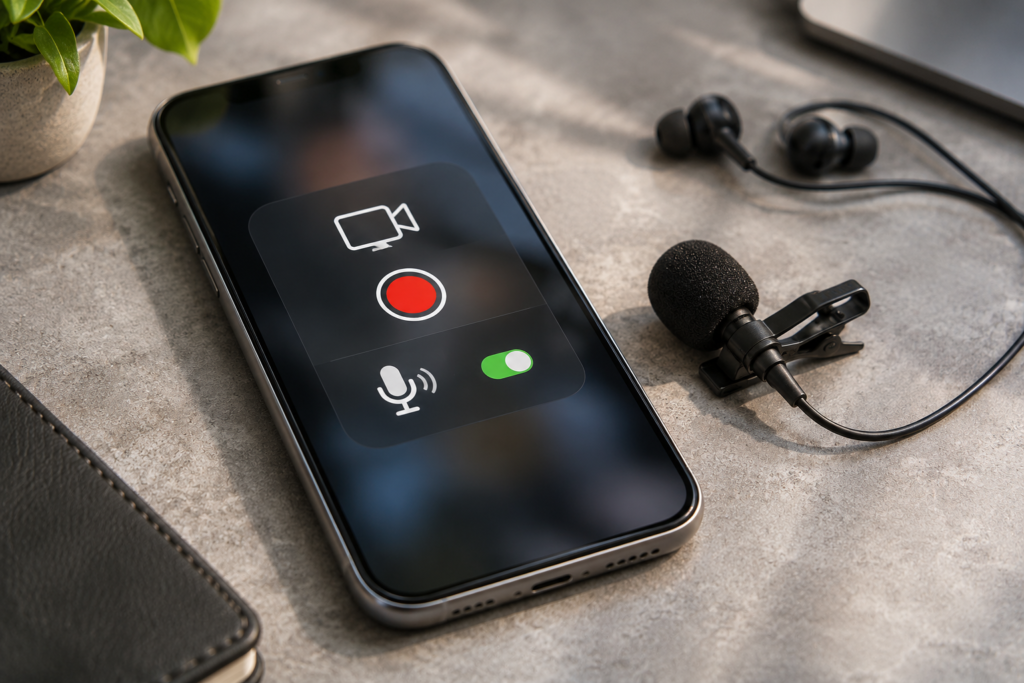
You finish a screen recording, open the video, and discover it has no sound. The picture looks fine. The app was playing audio while you recorded. So why is the saved clip silent?
The important distinction is which sound you expected to capture. Your phone may treat audio coming from an app differently from your voice through the microphone. Some apps also restrict recording. Before reinstalling anything or assuming your phone is damaged, make two short comparisons.
Find out which audio is missing
Record ten seconds of an ordinary, non-protected screen while speaking a sentence aloud. Then record a short clip from an app that allows audio capture. Play both saved files in Photos or Gallery at a comfortable volume.
- Voice missing, app sound present: the microphone option may be off or the wrong input may be selected.
- Voice present, app sound missing: check the device-audio source and whether that app allows recording.
- Both missing: inspect the recorder settings, then compare playback in another app.
- Only one app fails: an app-specific capture restriction is more likely than a broken phone speaker.
A silent screen recording does not prove that your microphone has failed. Our browser microphone test checks whether a browser can receive live input; it does not measure internal screen-recorder audio.
iPhone: turn on microphone narration before recording
Apple’s built-in Screen Recording control has a separate microphone option. A quick tap starts recording, but a long press exposes the microphone setting.
- Open Control Center. On most current iPhones, swipe down from the upper-right corner. Models with a Home button may use a swipe up from the bottom.
- Touch and hold Screen Recording. If the control is missing, add it through Control Center customization.
- Tap Microphone to enable it if you want your voice or nearby sound in the clip.
- Tap Start Recording, wait for the countdown, and speak a test sentence.
- Stop recording and open the saved video in Photos.
Apple notes that some apps might not allow audio or video recording, and screen recording cannot run simultaneously with screen mirroring. Enabling the microphone is not a way around those limits. It adds microphone narration; it does not guarantee capture of every app’s internal soundtrack. See Apple’s screen-recording instructions.
When your voice is still missing on iPhone
Temporarily disconnect Bluetooth earbuds or a headset and repeat the test using the phone’s built-in microphone. Close another app if it may be using the microphone. Then record a short sample in Voice Memos. If Voice Memos works but screen-recorded narration does not, investigate screen-recording settings and software before suspecting hardware. If multiple unrelated recording apps cannot hear your voice, check microphone access and the device’s physical condition.
Google Pixel and other Android phones: choose an audio source
On supported Android phones, Screen record is available in Quick Settings. Google documents an audio option before recording, but source names and availability depend on the device and software version.
- Swipe down twice to expand Quick Settings.
- Tap Screen record. If it is absent, look under Edit to add the tile on supported phones.
- Enable Record audio and inspect the available source choices.
- Where offered, choose Device audio for permitted app sound, Microphone for narration, or Device audio and microphone for both.
- Record a brief sample, stop it, and play the file in Photos.
Microphone-only recording may capture your room rather than the app’s internal sound. If you’re wearing headphones, that microphone may hear almost none of the music or video. Conversely, selecting device audio alone may omit your spoken explanation. Some apps block internal capture regardless of the setting.
See Google’s Android screen-recording guide. Do not assume a Pixel menu will look identical on Motorola, OnePlus, or another Android phone.
Samsung Galaxy: check Media sounds versus No sound
On compatible Galaxy models, open Quick Settings and tap Screen recorder. Depending on One UI version, the sound choices may include No sound, Media sounds, and Media sounds and mic.
Use Media sounds for permitted app audio without narration. Use Media sounds and mic when you also want to speak. If No sound is selected, the resulting clip is expected to be silent. Make a ten-second recording and find it in Gallery, often under Screen recordings.
Samsung warns that some apps block capture, and calls may not be recordable using the built-in recorder. Screen recorder is not available on every older or entry-level Galaxy model, so menus vary. The manufacturer’s Galaxy screen-recording instructions describe the options on supported devices.
Four reasons a recording is silent even when you heard sound
1. The app does not permit audio capture
Streaming video, subscription music, protected media, and some communication apps may restrict screen or sound recording. The clip may have a normal picture but no soundtrack, or recording may be blocked entirely. Test a different app that permits recording. Do not install software claiming to bypass content protections.
2. The recorder captures the microphone, not device audio
On Android, the microphone can pick up room noise without capturing a clean copy of the app soundtrack. Use the device-audio option where supported and permitted. On iPhone, use Apple’s microphone control for narration, but remember that app sound capture is not universal.
3. Playback is going to another device
A saved clip can contain sound but appear silent if audio is routed to headphones, a car, or another Bluetooth device. Disconnect external outputs, replay the clip, and adjust media volume. Our speaker test can confirm that ordinary browser audio plays at a comfortable level. It cannot tell whether your screen-recording file contains an audio track.
4. The microphone input is blocked or unavailable
If narration is missing in screen recordings and ordinary voice recordings, remove a case that covers microphone openings and disconnect external accessories for comparison. Do not insert pins or compressed air into microphone holes. If the microphone fails only in a specific app, our guide to microphone problems in one app explains permission checks.
Use three small tests instead of one long recording
After changing a setting, repeat the same tests so you can tell what improved:
- Test A — your voice: record a neutral screen while speaking. If narration is absent, check microphone capture.
- Test B — permitted app sound: record audio from an app that allows capture. If it alone is absent, check device-audio settings and restrictions.
- Test C — ordinary playback: play a familiar video or speaker-test sound without recording. If this fails too, investigate speaker output or routing separately.
Do not use a copyrighted streaming service as your only test source: a silent recording may be expected there. Avoid sharing test clips that show notifications, account details, private messages, or other people’s conversations.
If every screen recording remains silent
Restart the phone and check for a software update. Repeat a short test with the built-in recorder rather than an unfamiliar third-party app. Check whether the saved video is muted inside your player. If it plays with sound on another device, the file may be fine and playback settings deserve attention.
If the built-in recorder fails across several apps that permit recording, while normal microphone and speaker tests work, a software issue is more plausible than immediate hardware failure. Do not factory-reset the phone without a backup or manufacturer guidance; a reset is a disruptive last resort.
Frequently asked questions
Why is my iPhone screen recording silent with Microphone on?
The microphone setting adds narration, but apps can still restrict their own audio. Test your voice on a neutral screen. If your voice is absent there too, compare with Voice Memos before assuming hardware damage.
Can I capture internal sound and my voice together?
Many Android recorders offer a combined device-audio-and-microphone option, subject to app restrictions. Samsung may label it Media sounds and mic. iPhone can add microphone narration, but app sound is not guaranteed.
Will turning up the volume restore missing audio?
Only if the file contains audio and playback is too quiet or routed elsewhere. Increasing volume cannot recover sound the recorder never captured.
Does a silent recording mean my phone microphone is broken?
No. A disabled microphone option, device-audio-only setting, or app restriction can all explain missing narration. Compare with an independent voice recording first.
When to seek additional help
If your microphone fails across unrelated apps, calls also have input problems, or the phone was dropped or exposed to liquid, contact the manufacturer or a qualified repair provider. If only screen recordings fail, record your model, software version, affected apps, and the results of Tests A, B, and C before contacting software support.
Source check: Apple Support’s screen-recording guidance updated September 14, 2026; Google’s Android Help screen-recording instructions; and Samsung’s 2026 Galaxy screen-recorder documentation. Menus vary by model, region, and software version.