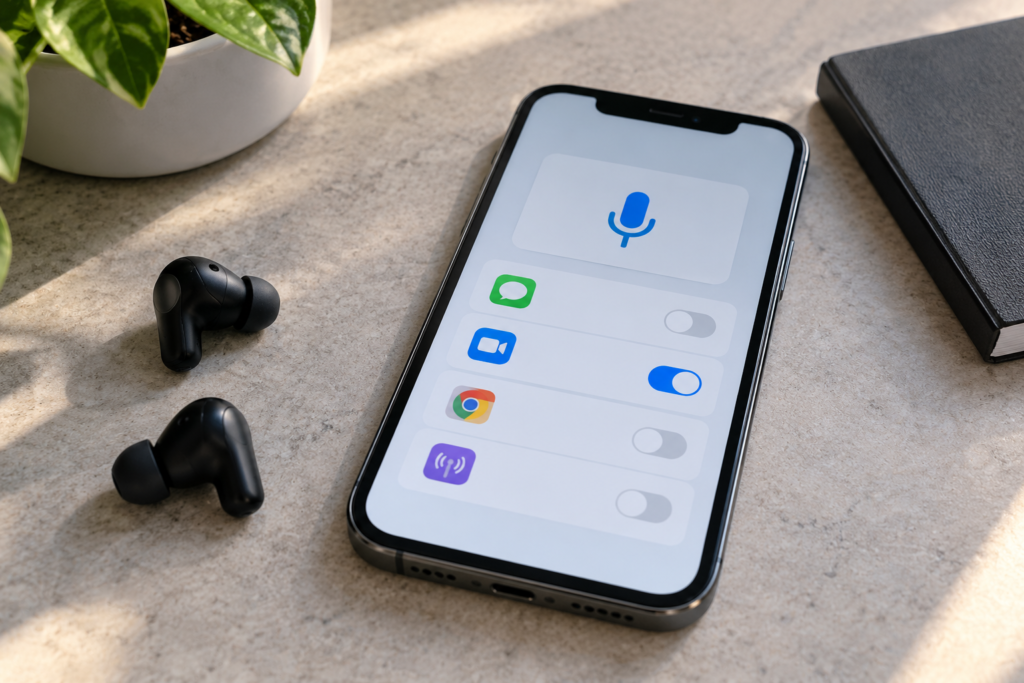
Your voice recorder works, yet a video chat, voice message or meeting app says it cannot use your microphone. That mismatch is useful information. A phone can have a working microphone while one app lacks permission to record, chooses a different input, or has a problem of its own.
Start by identifying where the sound fails. You usually do not need to reset the entire phone or clean its microphone opening just because one app is silent. This guide focuses on app-specific recording problems on iPhone, Google Pixel and Samsung Galaxy phones. It also explains what a browser microphone test can and cannot tell you.
First, run three short comparisons
Use a quiet room and speak at a normal level. Before each test, disconnect unnecessary wired headsets or Bluetooth accessories so you know which microphone is being used. Do not perform repeated tests if the phone is unusually hot, damaged or showing liquid-related warnings.
- Record in a built-in app. On iPhone, use Voice Memos. On Android, use the phone’s available voice-recorder or camera app. Record one sentence and play it back at a comfortable volume.
- Repeat in the affected app. Make a brief voice note, recording or test call if the app supports it. Check whether the app displays a microphone-permission warning, muted microphone symbol or input selector.
- Try one independent app. If you want another comparison, open our browser-based Microphone Test, allow the browser’s microphone request and speak while watching the level meter. The tool checks whether that browser can receive an audio signal; it does not certify every microphone or measure professional recording quality.
How to read the results: If the recorder and browser respond normally but one app fails, focus on that app’s permissions and settings. If every test fails, investigate a device-wide microphone block, connected accessory or possible hardware issue. If recordings work but a live call fails, the network, call app or input route may be involved. Passing one test is reassuring, but not proof that every microphone on a multi-microphone phone is healthy.
On iPhone: check the app’s microphone permission
Open Settings → Privacy & Security → Microphone. Find the affected app and enable access if you trust the app and need its recording feature. Then close and reopen that app and try a new recording. Apple’s iPhone microphone troubleshooting guide recommends this check when the microphone fails in a specific app.
If the app does not appear in the list, it may not have requested microphone access yet. Open the feature that needs your voice and watch for a permission prompt. If the app still never requests access, or access is enabled but recording remains unavailable, check the app developer’s instructions. Reinstalling an app can erase locally stored content, so do not make that your first step.
Watch the privacy indicator during an actual recording attempt. On supported iOS versions, an orange indicator shows microphone use without the camera; a green indicator can appear when the camera is in use. The indicator shows that an app accessed the hardware, not that your voice was captured clearly. Apple explains these controls in its hardware-permission documentation.
If Voice Memos works but video recording does not
Try the built-in Camera app with a short clip from the front camera and another from the rear camera. Play both back. Apple’s guidance uses different recording modes because they can exercise different microphones. If one recording mode is consistently silent while others work, check whether a case or protector covers an opening. Do not push tools into microphone holes. Persistent failure in several built-in recording modes deserves more attention than one third-party app misbehaving.
On Google Pixel and other Android phones
Go to Settings → Apps → the affected app → Permissions → Microphone. Choose an appropriate allowed option, such as Allow only while using the app, if available. Exact labels vary by Android version and manufacturer. Google’s Android permissions guide documents both the per-app controls and the system-wide microphone switch.
Android can also block microphone access for all apps. Swipe down to Quick Settings and look for a Microphone access control if your phone supports it. If access is off, an app may appear correctly configured yet still be unable to record. Turn it on only when you intend to use the microphone. A green privacy indicator on supported Android versions can show when an app is accessing the mic; tap it to see which app is involved.
Permissions can change without you intentionally switching them off. Some Android versions automatically remove sensitive permissions from apps that have not been used for a while. If a rarely used calling app suddenly stops hearing you, inspect its permissions again before assuming a new hardware failure.
On Samsung Galaxy: check both app and device access
Open Settings → Apps → [app name] → Permissions and review Microphone. Samsung’s Galaxy app-management guidance describes the available permission choices, which can vary with the software version. On newer Galaxy phones, also inspect the Quick Settings microphone-access control if present.
For a separate device check, compatible Galaxy phones offer a microphone diagnostic through Samsung Members. Samsung’s microphone troubleshooting instructions describe the diagnostic and recommend checking Bluetooth audio devices. A passing diagnostic is helpful evidence, but it does not reproduce every third-party app’s processing or network conditions.
Some Galaxy models also have a call-specific Mic mode setting. That is a sound-processing choice, not the same thing as granting an app permission. If your voice sounds unnatural rather than completely absent, compare supported mic modes during a call instead of treating the issue as a blocked permission.
When the problem happens in a website, check two permissions
A microphone test, browser meeting or web-based voice recorder may need access at two levels: the operating system must allow the browser to use the mic, and the browser must allow the particular website. Granting one does not necessarily grant the other.
- Check that Safari, Chrome or your chosen browser is allowed to access the microphone in the phone’s privacy settings, where applicable.
- Open the website, start its recording feature and respond to the browser’s microphone prompt. If you previously chose Block, review the site’s permissions in the browser settings.
- Reload the page and try again. Keep other tabs or apps that are actively recording closed while comparing results.
Our Microphone Test shows a live input level after permission is granted. If the meter stays flat, first confirm the browser’s selected input and permissions. A flat meter does not automatically mean a damaged phone microphone. For privacy, grant microphone access only to websites you trust and revoke it when no longer needed.
Check whether Bluetooth is supplying the wrong microphone
A connected headset, earbuds or car system can change the microphone used for calls or recordings. You might be speaking into the phone while the app is listening through a headset in another room. Turn Bluetooth off temporarily or disconnect the accessory, then record again with the phone alone. Reconnect the accessory and compare.
If the phone-alone recording works but the headset recording does not, inspect the accessory’s microphone, battery, call profile and the app’s input selection. If audio plays from the wrong device too, our Bluetooth audio-routing guide covers the related output problem. Remember that playback routing and microphone routing are separate checks.
If permissions are correct, troubleshoot the affected app
Start with reversible steps. Force-close the app and reopen it. Check its mute button, input-device menu, meeting controls and voice-note feature. Install a legitimate app update from the App Store or Google Play if one is available. Restart the phone if the issue persists.
For internet calls, compare a short local recording with a live call. If the local recording is clear but another person cannot hear you during a call, poor connectivity or an app-specific call setting may be responsible. Try a different reliable connection when practical. Do not conclude the microphone is broken from one dropped or silent online call.
Only consider clearing app data or reinstalling after checking whether drafts, messages, downloads, sign-in details or recordings are stored locally. Some apps erase those when reset. If the problem began immediately after an app update and every other recording method works, send the developer the phone model, operating-system version, app version and a concise description of which test passed and which failed.
What different outcomes actually suggest
Only one app is silent
Most useful next checks: that app’s microphone permission, mute state, selected input, update status and developer support. This pattern points toward an app-specific issue, though it cannot completely rule out a microphone that is used only in that app’s recording mode.
Every app is silent, but a Bluetooth headset works
Recheck the device-wide microphone control, disconnect accessories and compare built-in recording modes. If the phone’s own microphones remain silent, seek device-specific diagnostics.
Recordings are clear, but people cannot hear you in calls
Compare a cellular call with an internet call, check mute and the selected microphone, and review connection quality. Our call-audio troubleshooting guide explains how to separate the speaker, microphone and calling path.
Recordings are faint or distorted in several apps
Remove a case or accessory that may cover an opening, inspect for visible debris without inserting anything, and compare the built-in recorder with video. If the device was dropped or exposed to liquid, avoid risky cleaning or heat-based fixes and consider professional service.
When to stop and ask for repair help
Seek manufacturer support or a qualified technician if several built-in recording modes fail after permissions and accessories have been checked, if a diagnostic reports a microphone fault, or if the problem followed physical or liquid damage. Stop using a device that becomes abnormally hot, swells, or behaves unsafely. A browser test cannot diagnose internal corrosion or electrical damage.
Keep a short note of the tests you tried: the app that failed, whether Voice Memos or the Android recorder worked, Bluetooth status, permission settings, and whether the failure affects calls, videos or local recordings. That is more useful to a technician or app developer than simply saying “the microphone is broken.”
Common questions
Why can a voice recorder hear me when a meeting app cannot?
They may have different permissions, input selections or audio processing. A meeting app also depends on a working connection to transmit your voice. Compare a local recording inside the app with a live meeting if the app offers both.
Does the microphone privacy indicator mean my audio is being recorded correctly?
No. It indicates access, not recording quality. You still need to listen to a sample or inspect a legitimate input meter.
Should I reset all phone settings to fix one app?
Not initially. Check the affected app’s permissions, its mute and input settings, and an independent recording first. Broad resets can disrupt unrelated settings without identifying the actual cause.
Editorial note: Menu names and supported features differ across phone models and software versions. These steps are based on the linked manufacturer guidance and diagnostic comparisons, not on claims of laboratory testing.