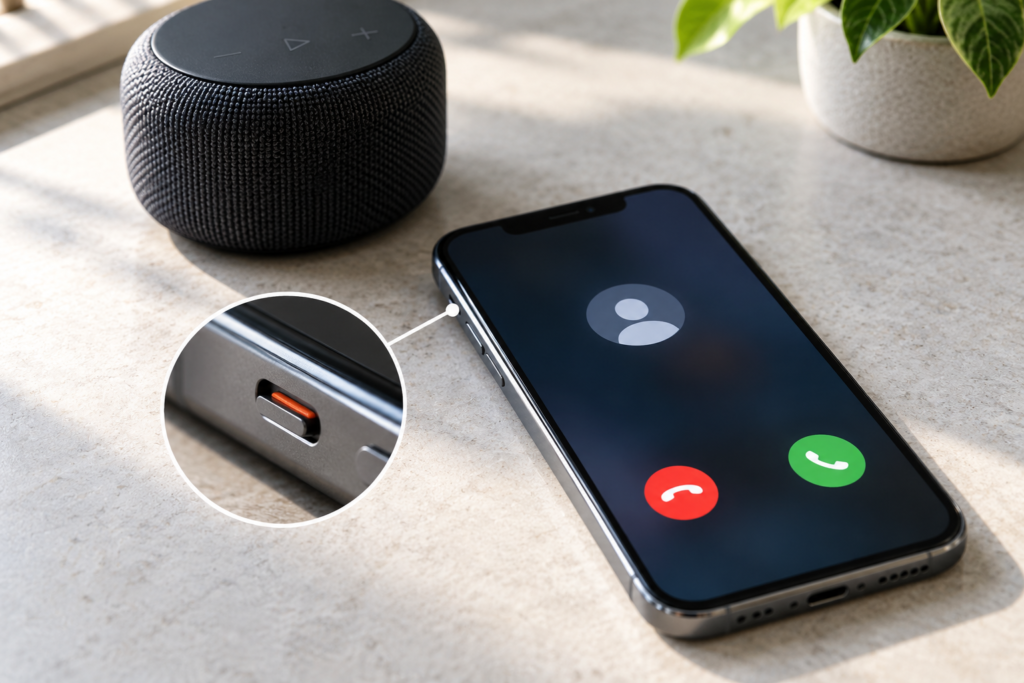
Your phone plays music and videos clearly, yet incoming calls arrive without a ringtone—or never seem to reach the screen at all. That difference is useful: media playback and incoming-call alerts are controlled by different settings. A working music speaker does not guarantee that calls are configured to ring, but it makes a completely failed loudspeaker less likely.
Before replacing a speaker or resetting your phone, find out what the caller experiences and what appears on your screen. Those two observations usually point to a much narrower set of checks.
First, find out which kind of “not ringing” you have
Ask a trusted person to call you while the phone is beside you. Keep the phone unlocked for the first test, and use a normal cellular call rather than a messaging app. Do not test by repeatedly calling emergency services.
- The incoming-call screen appears, but there is no sound: start with Ring/Silent, ringtone volume, Focus or Do Not Disturb, and the selected ringtone.
- The phone vibrates but does not ring: check whether the phone is set to Vibrate or Silent and whether a mode is suppressing audible alerts.
- Calls from saved contacts ring, but unfamiliar numbers do not: review unknown-caller screening, spam filters, and blocked numbers.
- The caller hears voicemail immediately and your phone shows nothing: investigate screening, forwarding, network reception, or carrier service—not just speaker volume.
- Only WhatsApp, Messenger, or another calling app is silent: examine that app’s notifications and call permissions; a normal phone ringtone test does not diagnose its settings.
Repeat the test once after each change. Changing five settings together makes it harder to know what actually fixed the problem.
Check the ringtone volume—not the music volume
Many phones separate media, calls, ringtones, notifications, and alarms. Turning up a song can leave the ringtone setting untouched. This is the most important distinction when music sounds normal.
On iPhone
- Open Settings → Sounds & Haptics.
- Adjust the ringtone volume slider to a comfortable, clearly audible level.
- Open Ringtone and select a built-in tone. Preview it to confirm that the phone can play an alert sound.
- Review Change with Buttons if you want the physical volume buttons to affect ringer volume; the available layout and separate volume controls can vary by iOS version.
If the ringtone preview sounds normal but a real call is silent, do not immediately blame the speaker. Continue with the call-silencing checks below. Apple documents these controls in its iPhone sounds and vibrations guide.
On Google Pixel and other Android phones
- Press a volume button, then open the expanded volume controls.
- Find Ring or Ring & notification volume and increase it modestly.
- Make sure the phone is in Ring mode rather than Vibrate or Mute.
- In Settings → Sound & vibration, choose a ringtone and preview it if the device offers that option.
Google explains that media and ring volume are separate in its Android volume guide. Android manufacturers use different menu labels, so follow the nearest equivalent on your model.
On Samsung Galaxy
Open Settings → Sounds and vibration, select Sound instead of Vibrate or Mute, then open Volume and check the ringtone slider. Also choose a known working ringtone. Samsung notes that volume buttons can control media rather than the ringtone when media is playing or headphones are connected, so the full settings page is a more reliable place to check. See Samsung’s ringtone troubleshooting guide.
Turn off temporary silence modes for one test
Silent mode, Focus, Do Not Disturb, Bedtime, and other scheduled modes can let music play while suppressing call alerts. A schedule can reactivate a mode even after you turn it off once.
- iPhone: check the Ring/Silent switch or Action button configuration, then open Control Center and turn off any active Focus such as Do Not Disturb, Sleep, or Work. On newer software, Silent mode can also appear in Control Center or Sounds & Haptics.
- Pixel: open Quick Settings, tap Modes, and check Do Not Disturb and any active custom mode. Review scheduled rules if the problem returns at the same time each day.
- Galaxy: check Do not disturb under Notifications and review Modes and Routines for Sleep, Work, or other automations.
Have your contact call again with the mode off. If the ringtone returns, the speaker is functioning; the next step is to adjust that mode’s allowed callers or schedule rather than leaving every alert enabled permanently. Google’s Pixel missed-call checklist covers these mode and gesture settings.
If only certain callers are silent, check filtering
A contact-specific pattern is different from a general volume problem. Try one saved contact and one trusted number that is not saved. Do not disable spam protection indefinitely just to run a test.
iPhone: unknown-caller screening and blocked contacts
On supported iOS versions, go to Settings → Apps → Phone. Look for Screen Unknown Callers, call filtering, and Blocked Contacts. Choose the option that allows unfamiliar numbers to ring during the test; names and availability vary by software version. If calls from one person never arrive, check whether that number is blocked. Apple’s guide to calls going straight to voicemail describes the current Phone and Focus checks.
Pixel and Samsung: blocking and spam controls
In the Phone app, inspect blocked numbers and call-screening or spam-protection settings. If an unknown number is screened or blocked, the missing ringtone may be expected behavior. Samsung also notes that a blocked caller or call forwarding can prevent a normal ringtone. Keep protective features enabled unless you have identified a specific false positive, and restore them after testing.
For one person whose calls are always silent, inspect their contact entry for a custom silent ringtone or other per-contact alert setting. Choose a standard ringtone, then retest.
Check whether calls are reaching your phone
If the caller goes straight to voicemail and you never see an incoming-call screen, raising volume will not solve the delivery problem. Compare your result with a second trusted caller and check these items in order:
- Airplane mode and signal: turn off Airplane mode and look for usable cellular service. Try a different location if reception is weak.
- Call forwarding: review Phone or carrier settings for forwarding that sends incoming calls elsewhere. Availability depends on carrier and plan.
- Wi-Fi Calling: if supported, review whether Wi-Fi Calling is enabled and whether the Wi-Fi connection is reliable. Switching between cellular and Wi-Fi for a controlled test can help isolate a coverage issue.
- Phone app and system updates: install available official updates, then restart the phone. Avoid factory-resetting as an early step.
- Carrier support: if multiple people cannot reach you despite a working signal and normal settings, ask the carrier to check line provisioning, forwarding, and service interruptions.
A missed call in the log without an audible alert suggests a different cause from a call that never reaches the device. Record the time and what the caller heard; that detail can help carrier support.
Could Bluetooth headphones or a car be involved?
Disconnect earbuds, a smartwatch with calling features, or a paired car system for one controlled test. Then ask someone to call again while the phone is on a desk. Some connected accessories have their own incoming-call notifications and audio behavior, but Bluetooth connection alone does not prove why the phone failed to ring.
If the ringtone behaves differently only when an accessory is connected, inspect the accessory’s call notification settings and the phone’s audio or call-routing preferences. Our Bluetooth audio routing guide covers how to identify which device is actually playing sound. It focuses on media output, so use it as a comparison rather than assuming media routing and ringtones always follow identical rules.
When should you suspect the speaker?
If a built-in ringtone preview, a video, and a browser sound test all fail through the phone’s speaker, there may be a broader output problem. Remove headphones, disconnect Bluetooth, and run our speaker sound test at a low, comfortable level. The tool can help compare audible output, but it cannot verify cellular call delivery or identify a failed component by itself.
If music and the ringtone preview play clearly but incoming calls are silent, investigate settings and call handling first. For generally quiet audio in multiple apps, our low phone volume guide addresses a different symptom.
Seek device service if the speaker is consistently silent or distorted across several sources after simple settings checks, especially after a drop or liquid exposure. If a phone is hot, swollen, or behaves abnormally after liquid exposure, stop troubleshooting with sound and seek qualified help.
A quick final test before you finish
- Choose a built-in ringtone and preview it at a comfortable volume.
- Set the phone to Ring, turn off temporary silence modes, and disconnect call accessories.
- Ask a saved contact to call. Note whether the call screen appears and whether you hear the ringtone.
- Try a trusted unsaved number to isolate screening or blocking.
- If both fail without appearing on screen, check network, forwarding, and carrier service rather than repeatedly increasing volume.
Once you identify the cause, restore the Focus, spam, and privacy protections you normally use, adjusting exceptions only where needed. The useful result is not merely a louder phone: it is knowing whether the problem was the ringtone, a silencing rule, caller filtering, or call delivery.
Questions readers often ask
Why does my alarm sound when incoming calls are silent?
Alarms and ringtones have different rules. On iPhone, Silent mode and Do Not Disturb generally do not silence Clock alarms. A working alarm therefore does not prove that your ringtone is enabled. Check ringtone and Focus settings separately.
Why do I get a missed-call notification but never hear ringing?
The call may have arrived while Ring/Silent, Focus, Do Not Disturb, or caller filtering suppressed the audible alert. Test with those settings off before considering hardware. If the pattern affects only one caller, check blocking and contact-specific settings.
Should I reset all settings or replace my speaker?
Not as a first step. A ringtone preview, two test callers, and a check of the current silence mode provide more useful evidence with much less disruption. Back up your device before any broader reset, and use manufacturer or carrier support if calls still fail.